Dev Site — You are viewing the development build. Go to Main Site

  • English
  • Français
  1. 2. Data Assembly and Management
  2. 2.2 Health Facilities Data
  3. Health facility coordinates and point data
  • Code library for subnational tailoring
    English version
  • 1. Getting Started
    • 1.1 About and Contact Information
    • 1.2 For Everyone
    • 1.3 For the SNT Team
    • 1.4 For Analysts
    • 1.5 Producing High-Quality Outputs
  • 2. Data Assembly and Management
    • 2.1 Working with Shapefiles
      • Spatial data overview
      • Basic shapefile use and visualization
      • Shapefile management and customization
      • Merging shapefiles with tabular data
    • 2.2 Health Facilities Data
      • Fuzzy matching of names across datasets
      • Health facility coordinates and point data
    • 2.3 Routine Surveillance Data
      • Routine data extraction
      • DHIS2 data preprocessing
      • Determining active and inactive status
      • Contextual considerations
      • Missing data detection methods
      • Health facility reporting rate
      • Data coherency checks
      • Outlier detection methods
      • Imputation methods
      • Final database
    • 2.4 Stock Data
      • LMIS
    • 2.5 Population Data
      • National population data
      • WorldPop population raster
    • 2.6 National Household Survey Data
      • DHS data overview and preparation
      • Prevalence of malaria infection
      • All-cause child mortality
      • Treatment-seeking rates
      • ITN ownership, access, and usage
      • Wealth quintiles analysis
    • 2.7 Entomological Data
      • Entomological data
    • 2.8 Climate and Environmental Data
      • Climate and environment data extraction from raster
    • 2.9 Modeled Data
      • Generating spatial modeled estimates
      • Working with geospatial model estimates
      • Modeled estimates of malaria mortality and proxies
      • Modeled estimates of entomological indicators
  • 3. Stratification
    • 3.1 Epidemiological Stratification
      • Incidence overview and crude incidence
      • Incidence adjustment 1: incomplete testing
      • Incidence adjustment 2: incomplete reporting
      • Incidence adjustment 3: treatment-seeking
      • Incidence stratification
      • Prevalence and mortality stratification
      • Combined risk categorization
      • Risk categorization REMOVE?
      • Risk categorization REMOVE?
    • 3.2 Stratification of Determinants of Malaria Transmission
      • Seasonality
      • Access to Care
  • 4. Review of Past Interventions
    • 4.1 Case Management
    • 4.2 Routine Interventions
    • 4.3 Campaign Interventions
    • 4.4 Other Interventions
  • 5. Targeting of Interventions
  • 6. Retrospective Analysis
    • 6.1: Trend analysis
  • 7. Urban Microstratification

On this page

  • Overview
  • Key concepts
    • Coordinate reference systems (CRS)
    • Coordinate formats
    • Coordinate Precision for SNT:
    • Common issues with point coordinate data
  • Step-by-Step
    • Step 1: Install and load packages
    • Step 2: Load and prepare input data
    • Step 3: Define, validate, and clean coordinates
      • 3.1: Split coordinates column (if needed)
      • 3.2: Define coordinate columns and clean data
    • Step 4: Convert to spatial object
    • Step 5: Save cleaned and spatial data
    • Step 6: Create and save health facility maps
      • 6.1: Basic health facility map
      • 6.2: Health facilities by type
      • 6.3: Specific health facility types
    • Step 7: Advanced point coordinates visualizations
      • 7.1: Point coordinates data summary
      • 7.2: Single indicator points coordinate visualization
      • 7.3: Multiple indicator points coordinate visualization
  • Summary
  • Full code
  1. 2. Data Assembly and Management
  2. 2.2 Health Facilities Data
  3. Health facility coordinates and point data

Health facility coordinates and point data

Beginner

Overview

It can be useful in SNT to visualize point coordinate data–such as locations of health facilities, community health workers, villages, or survey clusters–on a map. Mapping indicators at their point coordinates can also illustrate spatial heterogeneity at fine scale. This page uses health facility coordinate mapping as an example use case of working with point coordinate data, and the code presented here can be adapted to work with any kind of point coordinates.

More on spatial data

For background information on shapefiles and links to all the spatial data content in the SNT code library, including rasters and point data, please visit Spatial data overview.

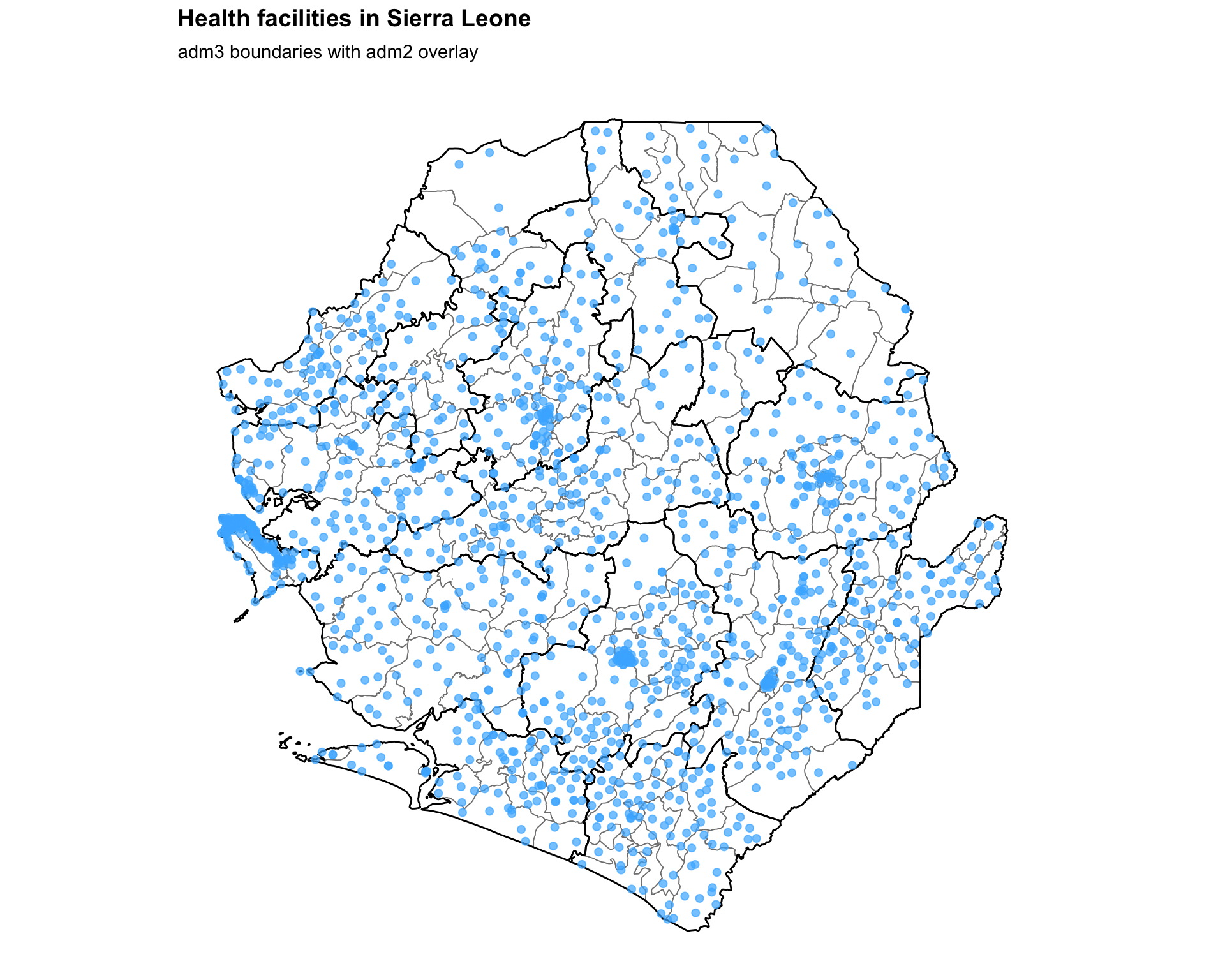
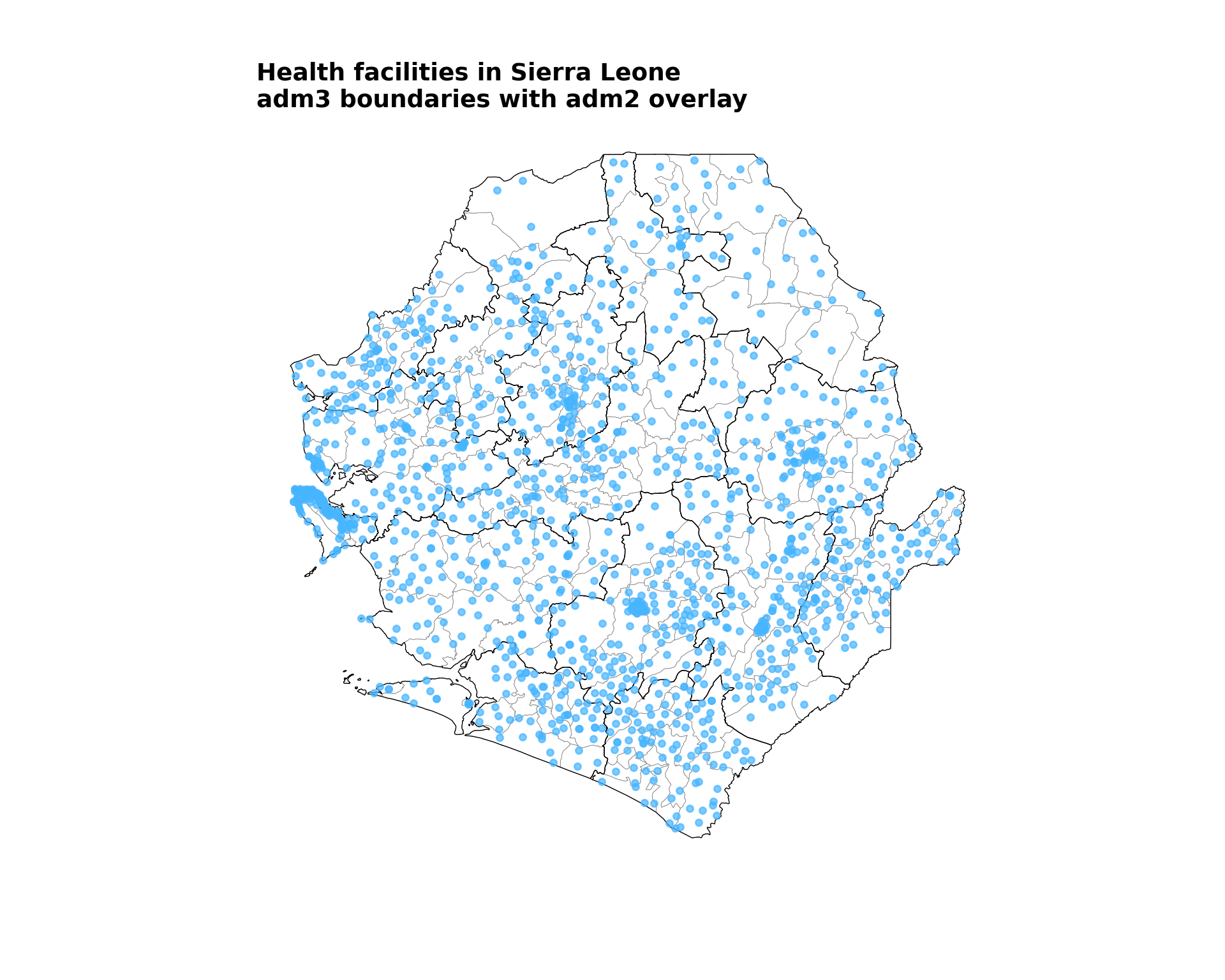
Health facility coordinate mapping is the process of visualizing where health facilities are located by plotting their coordinates (latitude and longitude) on maps with administrative boundaries. This spatial visualization shows the geographic distribution of healthcare infrastructure and helps identify areas with adequate health facility coverage versus areas with service gaps.

Objectives
  • Understand the basics of working with point data
  • Visualize the geographic distribution of health facilities across administrative boundaries
  • Show health facility locations spatially by type across administrative boundaries

Mapping health facilities provides critical insights for SNT by revealing geographic coverage gaps, supporting catchment area analysis, and enabling spatial targeting of interventions. This page builds on facility data preparation covered in the MFL-DHIS2 matching guide to create spatial visualizations.

Key concepts

Coordinate reference systems (CRS)

The coordinate reference system (CRS) defines how geographic locations are represented numerically. For comprehensive background on coordinate reference systems, projections, and spatial data management principles, see the Spatial data overview.

For mapping point coordinates, WGS84 and UTM are the most relevant CRS. Unlike for working with shapefiles, where you will likely want to use WGS84 for all applications, when working with point coordinates UTM may sometimes be more appropriate as it is more accurate for measuring distances and areas.

In the SNT process, health facility data is typically shared by the SNT team in Excel or CSV format, with coordinates provided in longitude and latitude. Therefore, the Geographic Coordinate System (WGS84 / EPSG:4326) is usually used for mapping.

Coordinate formats

Example coordinates in WGS84:

  • Latitude: 8.4820° (North of the equator)
  • Longitude: -13.2334° (West of the Prime Meridian)
  • Location: This represents a point in Freetown, Sierra Leone
  • Format: (lat, lon) = (8.48206, -13.23345)
Note

Note: Another coordinate format called DMS (Degrees-Minutes-Seconds) exists but is less often used in health data. DMS format looks like 8°28’55”N, 13°14’00”W and is mainly found in traditional marine navigation, aviation, and land surveying applications. For more details, refer to the documentation at: Merging Spatial Vectors

Coordinate Precision for SNT:

For coordinates data in decimal form, the number of digits should be considered to understand data precision.

  • 5+ decimal places (~1 meter precision): Ideal for facility-level mapping
  • 4 decimal places (~11 meter precision): Acceptable for most SNT applications
  • 3 decimal places (~111 meter precision): May cause misplacement in dense urban areas
  • 2 or fewer decimal places: Consult SNT team for more precise coordinates

Common issues with point coordinate data

  • Missing coordinate values

    Example: A health facility row has a blank entry for longitude or latitude, preventing it from being mapped.

    Solution: Follow up with the SNT team for help in finding missing coordinates. If ultimately not available, filter out facilities with missing coordinates before mapping.

  • Incorrect formats

    Example: Coordinates provided as 8°29'30"N instead of decimal degrees like 8.4917, causing errors during mapping.

    Solution: Convert to decimal format using tools like the measurements package in R.

  • Projection mismatches between datasets

    Example: A shapefile uses UTM Zone 29N projection while facility data uses WGS84, resulting in misaligned map layers that don’t overlay correctly.

    Solution: Before mapping or overlaying spatial layers, ensure all datasets use the same projection. Convert to WGS84 (EPSG:4326) for web mapping or to the appropriate UTM zone for precise measurements.

  • R
  • Python
# OPTION 1: Convert everything to WGS84 (EPSG:4326) for mapping
facilities_sf_wgs84 <- sf::st_transform(facilities_sf, crs = 4326)
adm2_gdf_wgs84 <- sf::st_transform(adm2_gdf, crs = 4326)

# OPTION 2: Convert everything to UTM for distance/area analysis
# First, find the correct UTM zone for your country (e.g., Sierra Leone is Zone 28N)
utm_zone <- 32628 # EPSG code for UTM Zone 28N

facilities_sf_utm <- sf::st_transform(facilities_sf, crs = utm_zone)
adm2_gdf_utm <- sf::st_transform(adm2_gdf, crs = utm_zone)
  • Inaccurate locations due to low precision

    Example: Coordinates given as 8.4, -11.7 instead of 8.412356, -11.736981, placing the facility far from its true location (potentially several kilometers off).

    Solution: Identify all records with low-precision coordinates (e.g., fewer than 5 decimal places) and consult the SNT team for accurate location data. Request that these points be re-shared with coordinates containing at least 5 decimal places, if available. This level of precision is necessary to ensure reliable mapping and prevent any misinterpretation of spatial analyses.

  • Combined coordinate column

    Health facility data is usually in the form of Excel or CSV files containing coordinates. The coordinate data can have either one column with both coordinates or separate longitude and latitude columns:

    Example 1 - Separate longitude and latitude columns:

    | facility_name    | type     | longitude| latitude|
    |------------------|----------|----------|---------|
    | Central Hospital | HOSPITAL | -13.2334 | 8.4820  |
    | Health Post A    | CHC      | -13.1456 | 8.5123  |
    | District Clinic  | CLINIC   | -13.0987 | 8.4567  |

    Example 2 - Combined coordinate column:

    | facility_name    | type     | coordinates          |
    |------------------|----------|----------------------|
    | Central Hospital | HOSPITAL | 8.4820, -13.2334     |
    | Health Post A    | CHC      | 8.5123; -13.1456     |
    | District Clinic  | CLINIC   | 8.4567  -13.0987     |

    Solution: If your data has a combined coordinate column, you will need to separate out the latitude and longitude before analysis or visualization.

Step-by-Step

This section guides users through working with points coordinates data by creating comprehensive health facility maps with professional styling and multiple visualization approaches. The example uses Sierra Leone health facility data with administrative boundaries.

Before working with health facilities coordinates data, verify with the SNT team the following:

  • Coordinate accuracy and completeness (no missing latitude or longitude values)
  • Facility names and identifiers are consistent and unique
  • Facility type classifications are standardized

To skip the step-by-step explanation, jump to the full code at the end of this page.

Step 1: Install and load packages

Install and load the necessary packages for handling spatial data, reading various file formats, data manipulation, and advanced visualization for health facility mapping.

  • R
  • Python
# Check if 'pacman' is installed; install it if missing
if (!requireNamespace("pacman", quietly = TRUE)) {
  install.packages("pacman")
}

# Load all required packages using pacman
pacman::p_load(
  sf,           # for reading and handling spatial data
  readxl,       # for reading Excel files
  readr,        # for reading CSVs
  dplyr,        # for data manipulation
  stringr,      # for string cleaning and formatting
  ggplot2,      # for creating plots
  RColorBrewer, # for color palettes
  scales,       # for formatting scales and labels
  here,         # for cross-platform file paths
  tidyr         # for data reshaping and coordinate splitting
)

To adapt the code:

  • Do not modify anything in the code above

Step 2: Load and prepare input data

This step involves loading administrative boundary data along with health facility coordinate datasets and setting up file paths for consistent data access.

In this example, we are loading our points data (health facility coordinates) from an Excel file. If your points data is stored in shapefile format, please follow the steps in Basic shapefile use and visualization to load your data, then proceed directly to visualization in Step 7. Be sure to check that the CRS of your points data and the CRS of your administrative boundary shapefile are the same.

  • R
  • Python
Show the code
# Define base directories and filenames
shp_dir <- "english/data_r/shapefiles"
hf_dir  <- "english/data_r/health_facility"

# Define filenames
shp_file <- "Chiefdom2021.shp"
hf_file  <- "mfl_hfs.xlsx"
adm2_file <- "District 2021.shp"

# Compose full file paths for data loading
shp_path <- here::here(shp_dir, shp_file)
hf_path  <- here::here(hf_dir, hf_file)
adm2_path <- here::here(shp_dir, adm2_file)

# Load shapefile and ensure proper CRS
df1 <- sf::st_read(shp_path, quiet = TRUE)

# Load adm2 boundaries shapefile and ensure proper CRS
adm2_gdf <- sf::st_read(adm2_path, quiet = TRUE)

# Load health facility Excel data
df2 <- readxl::read_excel(hf_path)

# Create reusable function for CRS standardization
standardize_crs <- function(sf_object, target_crs = 4326) {
  if (is.na(sf::st_crs(sf_object))) {
    sf::st_crs(sf_object) <- target_crs
    cat("CRS was undefined - assigned EPSG:", target_crs, "\n")
  } else if (sf::st_crs(sf_object)$epsg != target_crs) {
    sf_object <- sf::st_transform(sf_object, crs = target_crs)
    cat("Transformed to EPSG:", target_crs, "for consistency\n")
  } else {
    cat("Already in EPSG:", target_crs, "\n")
  }
  return(sf_object)
}

# Apply to both shapefiles
df1 <- standardize_crs(df1)
adm2_gdf <- standardize_crs(adm2_gdf)

# Print data verification
cat("=== DATA VERIFICATION ===\n")
cat("Administrative boundary columns:\n")
print(names(df1))
cat("\nHealth facility data columns:\n")
print(names(df2))
cat("\nSample of health facility data:\n")
print(head(df2, 3))
Output
CRS was undefined - assigned EPSG: 4326 
Already in EPSG: 4326 
=== DATA VERIFICATION ===
Administrative boundary columns:
[1] "CCODE"      "FIRST_REGI" "FIRST_RE_1" "FIRST_DNAM" "FIRST_DCOD"
[6] "FIRST_CHIE" "geometry"  

Health facility data columns:
[1] "adm1"       "adm3"       "community"  "hf"         "type"      
[6] "Ownership"  "functional" "w_lat"      "w_long"    

Sample of health facility data:
# A tibble: 3 × 9
  adm1    adm3           community hf    type  Ownership functional w_lat w_long
  <chr>   <chr>          <chr>     <chr> <chr> <chr>     <chr>      <dbl>  <dbl>
1 Bombali Mara           Kiampkak… Kiam… MCHP  Governme… Functional  8.61  -12.2
2 Bombali Bombali Sebora Station … Lore… CLIN… Faith Ba… Functional  8.89  -12.0
3 Bombali Bombali Sebora Makama R… Make… HOSP… Governme… Functional  8.87  -12.1

To adapt the code:

  • Lines 6-7: Change directory paths to match the folder structure
  • Lines 10-11: Update filenames to match the actual files

Step 3: Define, validate, and clean coordinates

3.1: Split coordinates column (if needed)

This step is only required if longitude and latitude are combined in a single column. If your data already has separate columns, skip this step.

  • R
  • Python
# This step is only required if longitude and latitude are combined 
# in a single column. If columns are separate, skip this step.

# Replace separators (; or space) with a comma
df2$coordinates <- gsub("[; ]+", ",", df2$coordinates)

# Split coordinates column by comma into two columns
df2 <- tidyr::separate(df2, col = "coordinates", 
                       into = c("w_lat", "w_long"), 
                       sep = ",", convert = TRUE)

cat("Coordinates successfully split into separate columns\n")
cat("Sample of split coordinates:\n")
print(df2[1:3, c("w_lat", "w_long")])

To adapt the code:

  • Line 8 & 11: Replace "coordinates" with the combined coordinate column name
  • Line 12: Update "w_lat" and "w_long" with the preferred column names
  • Skip this entire step if the data already has separate latitude and longitude columns
Critical: Verify Latitude and Longitude Order

A common error is mixing up latitude and longitude. The standard format is usually (Latitude, Longitude).

  • Latitude (Y-axis): Range is -90° to 90°. Represents North-South position.
  • Longitude (X-axis): Range is -180° to 180°. Represents East-West position.

Always confirm the order with your data source or the SNT team. Incorrect order will plot facilities in the wrong hemisphere!

3.2: Define coordinate columns and clean data

Define the coordinate columns and clean the health facility data by removing invalid coordinates and ensuring data quality. This code also checks if coordinate columns are within the valid global latitude and longitude ranges.

  • R
  • Python
# Define longitude (x) and latitude (y) coordinates
df2$x <- df2$w_long
df2$y <- df2$w_lat

# Identify facilities with invalid coordinates for follow-up
facilities_to_review <- df2[
  is.na(df2$x) | is.na(df2$y) | 
  df2$x < -180 | df2$x > 180 | 
  df2$y < -90 | df2$y > 90,
]

# Save the list of facilities to review
write.csv(facilities_to_review, "health_facilities_coordinates_to_review.csv", row.names = FALSE)

# Filter to KEEP only valid, in-range coordinates
facilities_clean <- df2[
  !is.na(df2$x) & !is.na(df2$y) &
  df2$x >= -180 & df2$x <= 180 &
  df2$y >= -90 & df2$y <= 90,
]

# Print cleaning results
cat("=== DATA CLEANING RESULTS ===\n")
cat("Original health facilities:", nrow(df2), "\n")
cat("Clean health facilities:", nrow(facilities_clean), "\n")
cat("Removed facilities:", nrow(df2) - nrow(facilities_clean), "\n")
cat("Facilities saved for review: 'health_facilities_coordinates_to_review.csv' (n =", nrow(facilities_to_review), ")\n")
cat("Coordinate range - Longitude:", min(facilities_clean$x), "to", max(facilities_clean$x), "\n")
cat("Coordinate range - Latitude:", min(facilities_clean$y), "to", max(facilities_clean$y), "\n")
Output
=== DATA CLEANING RESULTS ===
Original health facilities: 1556 
Clean health facilities: 1531 
Removed facilities: 25 
Coordinate range - Longitude: -13.29207 to -10.30744 
Coordinate range - Latitude: 6.96792 to 9.973346 

To adapt the code:

  • Lines 7-8: Update w_long and w_lat to match the longitude and latitude column names

Step 4: Convert to spatial object

Convert the cleaned health facility data to a spatial object for advanced spatial operations and analysis.

Why create a spacial object?

A spatial object is a special type of dataset that understands the points are on a map, not just numbers in a table. This is required for any geographic operation.

You need to complete this step if you plan to:

  • Map the facilities.
  • Calculate distances or catchment areas.
  • Join facility data to administrative boundaries (e.g., which district is each facility in?).
  • Perform any analysis that uses the geographic location of the facilities.
  • R
  • Python
# Convert to spatial object
facilities_sf <- sf::st_as_sf(
  facilities_clean,
  coords = c("w_long", "w_lat"),
  crs = 4326
)

cat("Successfully converted to spatial object\n")
cat("Spatial object summary:\n")
print(facilities_sf[1:3, ])
Output
Successfully converted to spatial object
Spatial object summary:
Simple feature collection with 3 features and 9 fields
Geometry type: POINT
Dimension:     XY
Bounding box:  xmin: -12.20295 ymin: 8.610318 xmax: -12.04387 ymax: 8.886622
Geodetic CRS:  WGS 84
# A tibble: 3 × 10
  adm1    adm3           community  hf    type  Ownership functional     x     y
  <chr>   <chr>          <chr>      <chr> <chr> <chr>     <chr>      <dbl> <dbl>
1 Bombali Mara           Kiampkako… Kiam… MCHP  Governme… Functional -12.2  8.61
2 Bombali Bombali Sebora Station R… Lore… CLIN… Faith Ba… Functional -12.0  8.89
3 Bombali Bombali Sebora Makama Ro… Make… HOSP… Governme… Functional -12.1  8.87
# ℹ 1 more variable: geometry <POINT [°]>

To adapt the code:

  • Line 8: Update coordinate column names to match the data

Step 5: Save cleaned and spatial data

Save the cleaned health facility data and spatial objects for future use, verification, and sharing with team members.

  • R
  • Python
# Create output directory
output <- "english/outputs"
dir.create(output, recursive = TRUE, showWarnings = FALSE)

# Define output filenames and paths
hf <- "facilities.csv"
sf <- "facilities_spatial.shp"

hf_path <- file.path(output, hf)
sf_path <- file.path(output, sf)

# Save cleaned data as CSV
write.csv(facilities_clean, hf_path, row.names = FALSE)

# Save spatial data as shapefile
sf::st_write(facilities_sf, sf_path, append = FALSE, quiet = TRUE)

cat("Data saved successfully:\n")
cat("CSV file:", hf_path, "\n")
cat("Shapefile:", sf_path, "\n")
Output
Data saved successfully:
CSV file: english/outputs/facilities.csv 
Shapefile: english/outputs/facilities_spatial.shp 

To adapt the code:

  • Line 6: Set or change the output directory path
  • Lines 10-11: Update output filenames as needed

Step 6: Create and save health facility maps

Create comprehensive maps displaying health facility locations with different visualization approaches to show the spatial distribution of healthcare infrastructure.

6.1: Basic health facility map

  • R
  • Python
# Define map title and output filename
title <- "Health facilities in Sierra Leone"
map   <- "health_facility_locations.png"

# Create the basic map
facilities_map <- ggplot2::ggplot() +
  ggplot2::geom_sf(data = df1, fill = "white",
                   color = "grey50",
                   size = 0.3) +
  ggplot2::geom_sf(data = adm2_gdf, fill = NA,
                   color = "black",
                   size = 0.5) +
  ggplot2::geom_point(
    data = facilities_clean,
    ggplot2::aes(x = x, y = y),
    color = "#47B5FF", size = 0.8, alpha = 0.7
  ) +
  ggplot2::coord_sf() +
  ggplot2::theme_void() +
  ggplot2::theme(
    plot.title = ggplot2::element_text(hjust = 0.5,
                                       size = 14,
                                       face = "bold"),
    plot.margin = ggplot2::margin(10, 10, 10, 10)
  ) +
  ggplot2::labs(title = title)

# Print and save the map
print(facilities_map)

ggplot2::ggsave(
  filename = file.path(output, map),
  plot = facilities_map,
  width = 10,
  height = 7,
  bg = "white",
  dpi = 300
)

cat("Map saved as:", file.path(output, map), "\n")
Output

Map saved as: english/outputs/health_facility_locations.png 

To adapt the code:

  • Lines 6-7: Update the map title and output filename
  • Lines 11, 12 & 13: Update fill, color, and size for boundary styling
  • Line 17: Update color, size, and alpha for health facility points

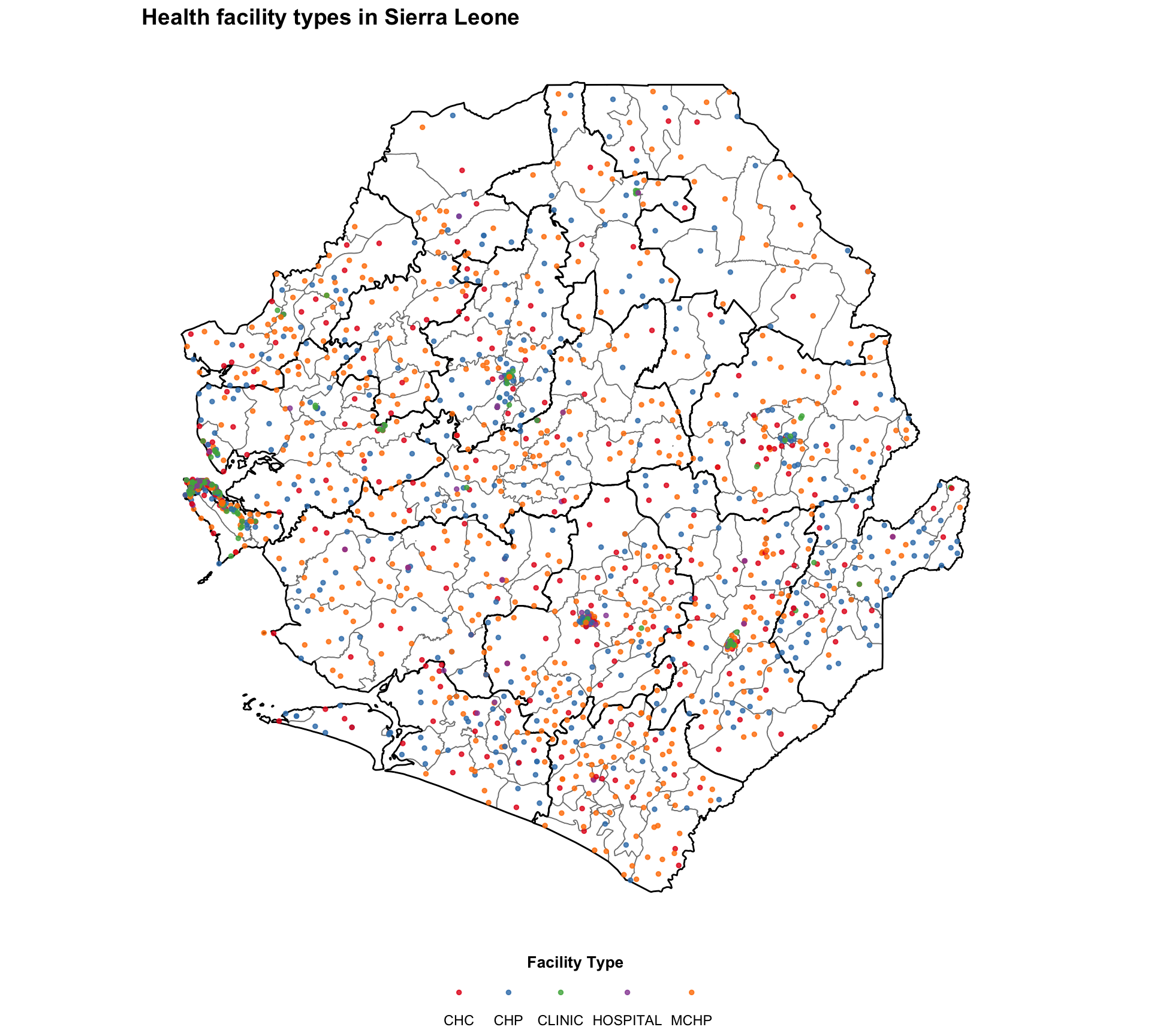
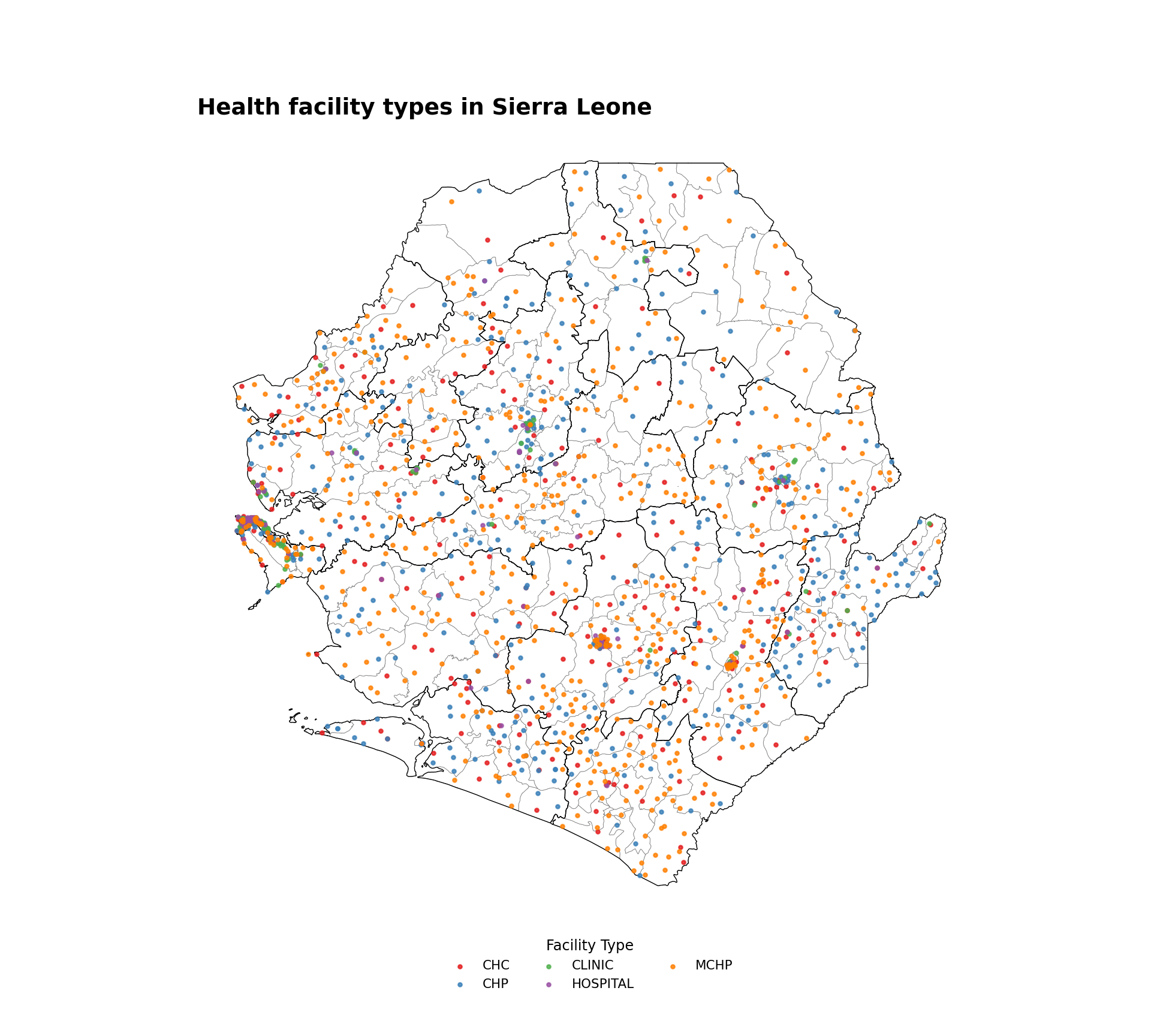
6.2: Health facilities by type

  • R
  • Python
# Define map title and output filename for facility type map
title_type <- "Health facility types in Sierra Leone"
map_type   <- "health_facility_by_type.png"

# Create health facility type map
facility_type_map <- ggplot2::ggplot() +
  ggplot2::geom_sf(data = df1, fill = "white", 
                   color = "gray50", size = 0.3) +
    ggplot2::geom_sf(data = adm2_gdf, fill = NA,
                   color = "black",
                   size = 0.5) +
  ggplot2::geom_point(
    data = facilities_clean,
    ggplot2::aes(x = x, y = y, color = type),
    size = 1, alpha = 0.8
  ) +
  ggplot2::coord_sf() +
  ggplot2::scale_color_brewer(palette = "Set1", name = "Facility Type") +
  ggplot2::theme_void() +
  ggplot2::theme(
    legend.position = "bottom",
    legend.title = ggplot2::element_text(size = 12, face = "bold"),
    legend.text = ggplot2::element_text(size = 10),
    plot.title = ggplot2::element_text(hjust = 0.5, size = 14, face = "bold"),
    plot.margin = ggplot2::margin(10, 10, 10, 10)
  ) +
  ggplot2::labs(title = title_type)

# Print and save the type map
print(facility_type_map)

ggplot2::ggsave(
  filename = file.path(output, map_type),
  plot = facility_type_map,
  width = 10,
  height = 7,
  bg = "white",
  dpi = 300
)

cat("Facility type map saved as:", file.path(output, map_type), "\n")
Output

Facility type map saved as: english/outputs/health_facility_by_type.png 

To adapt the code:

  • Lines 6-7: Update the map title and output filename
  • Line 15: Replace type with the facility type column name
  • Line 19: Update palette for different color schemes

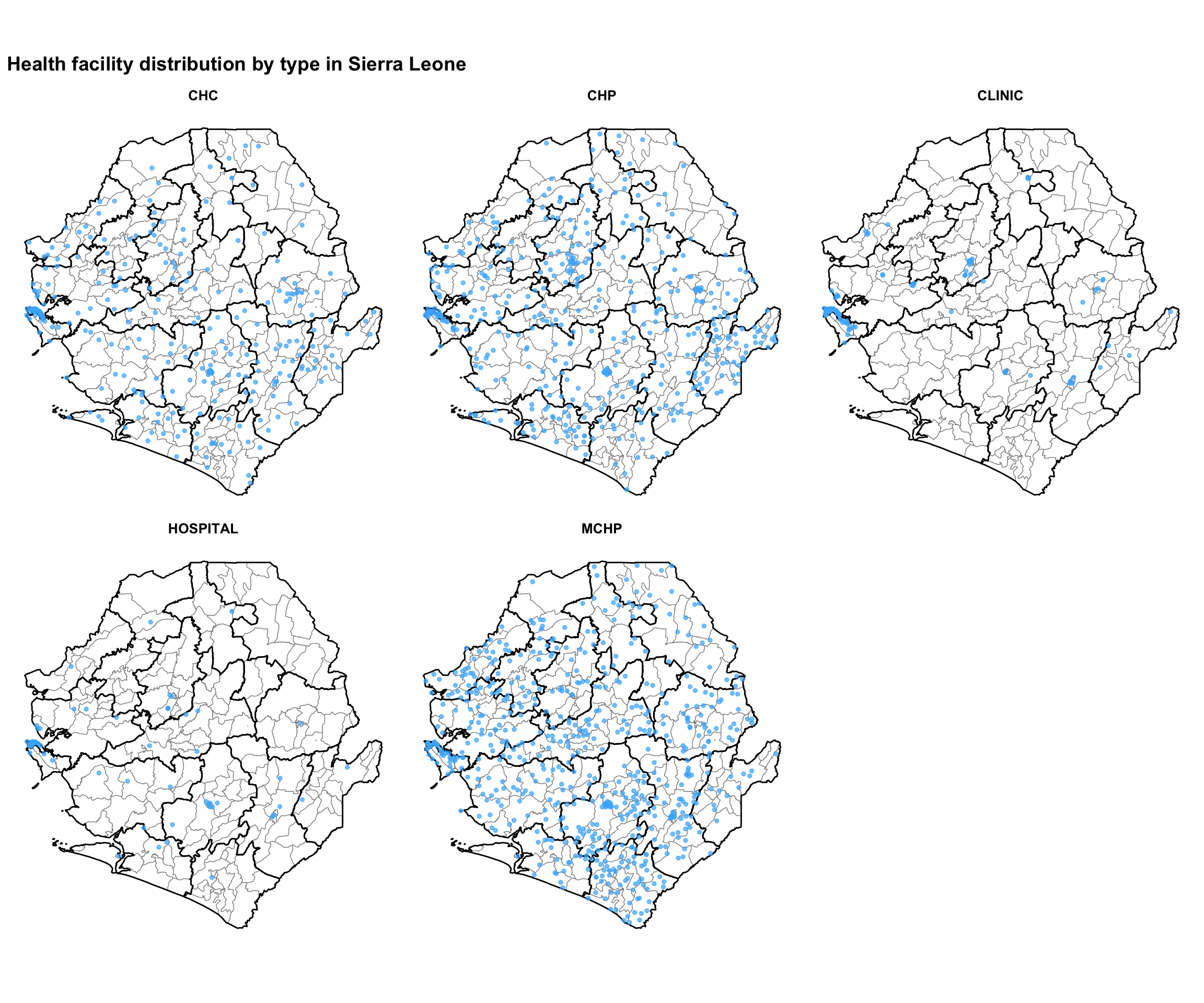
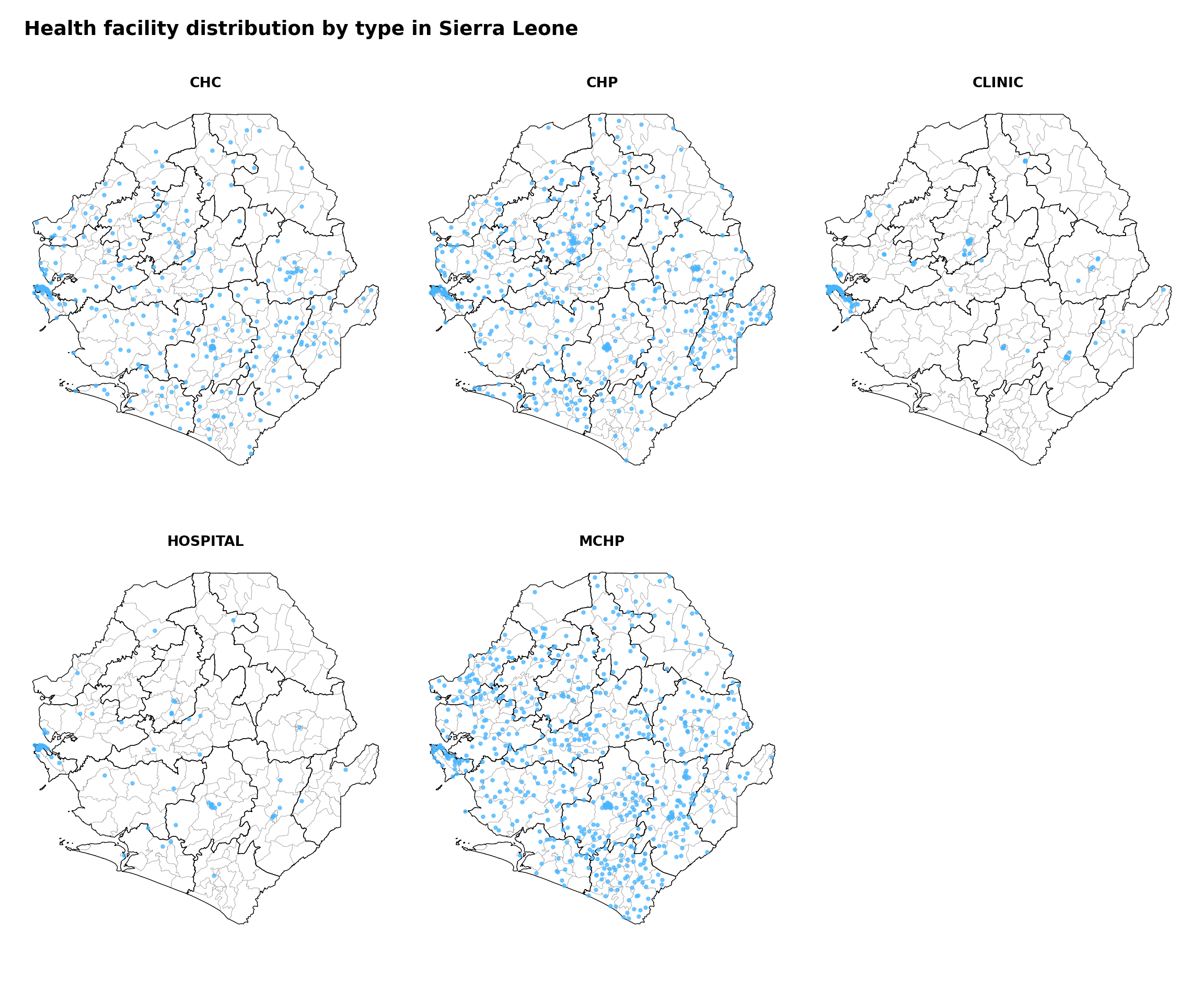
6.3: Specific health facility types

  • R
  • Python
# Define map title and output filename for faceted map
title_facet <- "Health facility distribution by type in Sierra Leone"
map_facet   <- "health_facility_faceted_by_type.png"

# Create faceted map by facility type
faceted_type_map <- ggplot2::ggplot() +
  ggplot2::geom_sf(data = df1, fill = "white", 
                   color = "gray50", size = 0.2) +
    ggplot2::geom_sf(data = adm2_gdf, fill = NA,
                   color = "black",
                   size = 0.5) +
  ggplot2::geom_point(
    data = facilities_clean,
    ggplot2::aes(x = x, y = y),
    color = "#47B5FF", size = 1, alpha = 0.7
  ) +
  ggplot2::facet_wrap(~ type) +
  ggplot2::coord_sf() +
  ggplot2::theme_void() +
  ggplot2::theme(
    plot.title = ggplot2::element_text(hjust = 0.5, size = 14, face = "bold"),
    strip.text = ggplot2::element_text(face = "bold", size = 10),
    plot.margin = ggplot2::margin(10, 10, 10, 10)
  ) +
  ggplot2::labs(title = title_facet)

# Print the faceted map
print(faceted_type_map)

# Save the faceted map
ggplot2::ggsave(
  filename = file.path(output, map_facet),
  plot = faceted_type_map,
  width = 12,
  height = 9,
  bg = "white",
  dpi = 300
)

cat("Faceted type map saved as:", file.path(output, map_facet), "\n")
Output

Faceted type map saved as: english/outputs/health_facility_faceted_by_type.png 

To adapt the code:

  • Line 6: Change "HOSPITAL" to match your desired facility type
  • Lines 10-11: Update map title and filename accordingly
  • Line 20: Update point color and size as desired

Step 7: Advanced point coordinates visualizations

Point coordinates data can be used to visualize indicators at the facility level in addition to geographic location. The example below uses the merged DHIS2-MFL data obtained through the Fuzzy Matching of Names Across Datasets page of this code library.

7.1: Point coordinates data summary

This examples uses merged DHIS2-MFL data to calculate the test posivity rate for each health facility. Test positivity is the proportion of positive cases out of all cases tested. First we calculate test positivity rate for each health facility per year.

  • R
  • Python
final_dhis2_mfl_integrated <- readRDS(
  here::here(
  "english/data_r/health_facility/final_dhis2_mfl_integrated.rds"))

# Calculate annual summaries for each health facility
annual_summary <- final_dhis2_mfl_integrated |>
  dplyr::group_by(hf_uid, hf, year, lat, long) |>
  dplyr::summarise(
    # Sum tests across all age groups and settings
    total_tests = sum(test_u5 + test_5_14 + test_ov15,
                          na.rm = TRUE),
    # Sum positive tests across all age groups and settings
    positive_tests = sum(conf_u5 + conf_5_14 + conf_ov15,
                             na.rm = TRUE),
    .groups = 'drop') |>
  # Calculate Test Positivity Rate (TPR) as percentage
  dplyr::mutate(
    tpr = base::ifelse(total_tests > 0, 
                      (positive_tests / total_tests) * 100, 
                      NA_real_)) |>
  # Remove facilities with no tests
  dplyr::filter(total_tests > 0)

# Filter for 2023 only and remove NA/zero-testing facilities
annual_summary_2023 <- annual_summary |>
  dplyr::filter(year == 2023, !is.na(tpr), total_tests > 0, 
                !is.na(lat), !is.na(long)) |>
  dplyr::mutate(
    size_category = dplyr::case_when(
      total_tests <= 100 ~ "≤100",
      total_tests <= 500 ~ "101-500",
      total_tests <= 1000 ~ "501-1,000",
      total_tests <= 5000 ~ "1,001-5,000",
      TRUE ~ "5,000+"
    ),
    size_category = factor(size_category, 
                          levels = c("≤100", "101-500", "501-1,000", 
                                     "1,001-5,000", "5,000+"))
  )

7.2: Single indicator points coordinate visualization

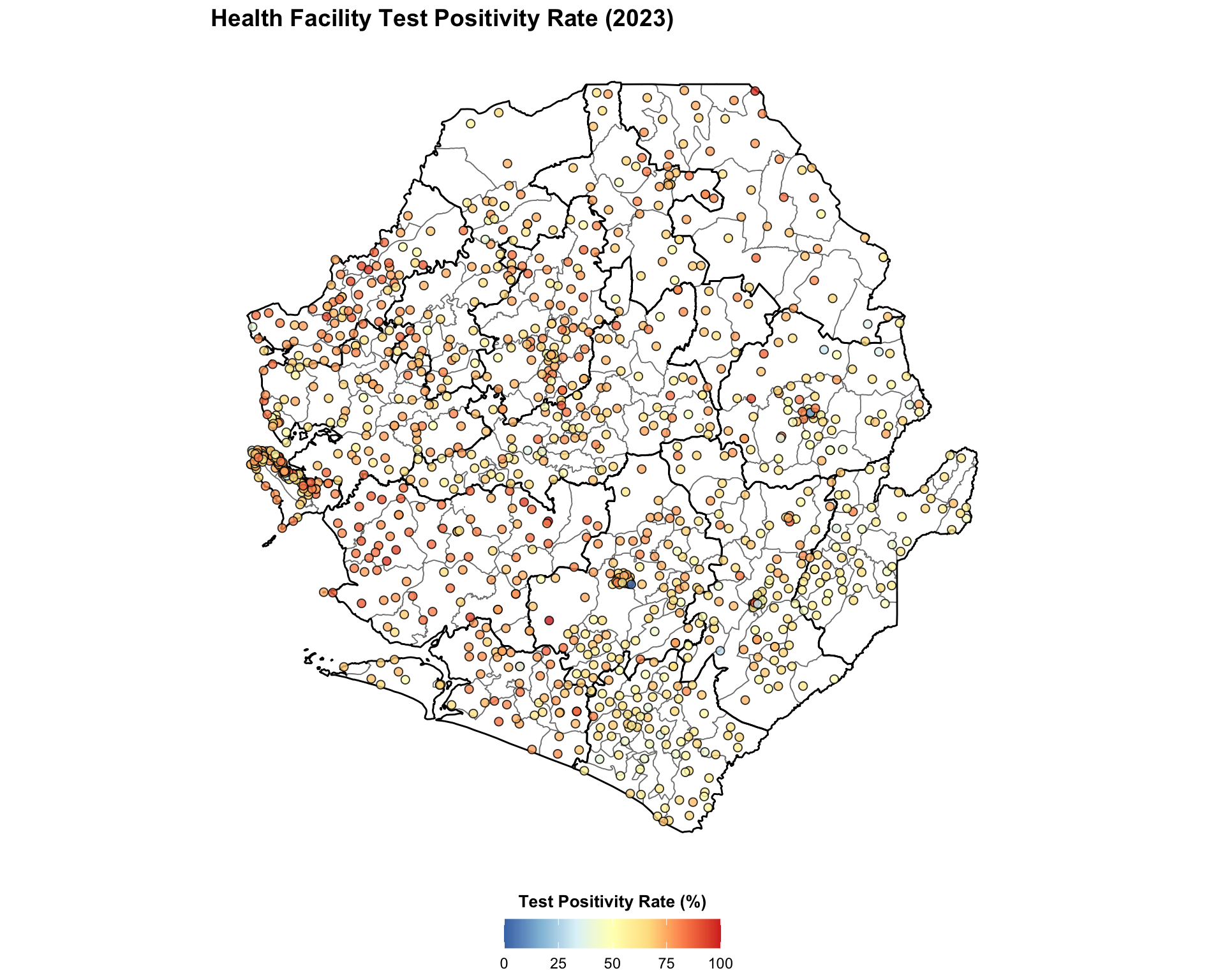
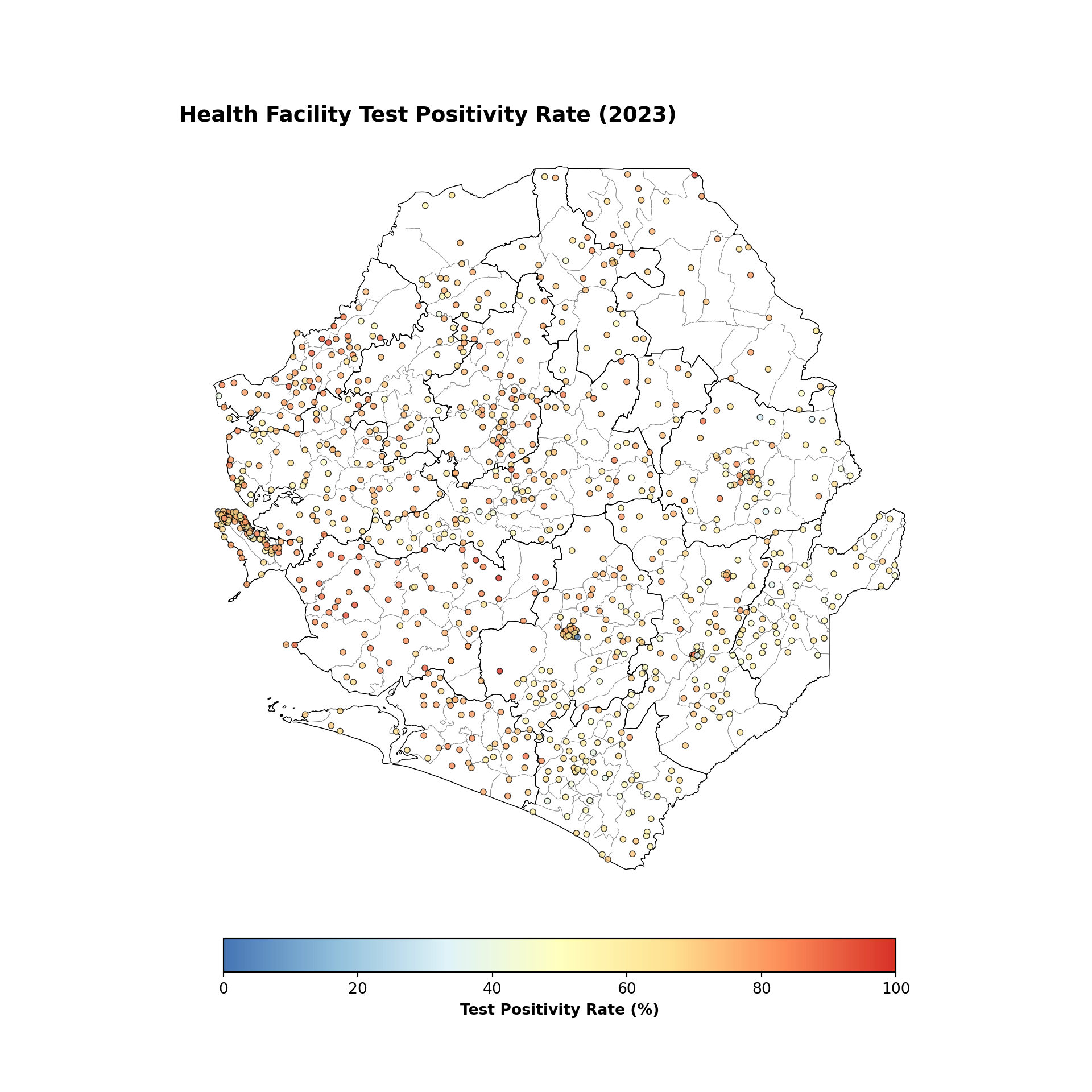
This code plots health facilities by their geographic coordinates and uses the colouring of points to indicate the test positivity value for that facility. For simplicity, this plot shows only 2023 test positivity rates by facility.

  • R
  • Python
map_tpr_2023 <- "health_facility_tpr_2023.png"

tpr_only_2023 <- ggplot2::ggplot() +
  ggplot2::geom_sf(data = df1, fill = "white", 
                   color = "gray50", size = 0.3) +
  ggplot2::geom_sf(data = adm2_gdf, fill = NA,
                   color = "black",
                   size = 0.5) +
  ggplot2::geom_point(
    data = annual_summary_2023,
    ggplot2::aes(x = long, y = lat, fill = tpr),
    shape = 21,
    size = 2,  
    stroke = 0.5,
    alpha = 0.8
  ) +
  ggplot2::coord_sf() +
  ggplot2::scale_fill_gradientn(
    colors = rev(RColorBrewer::brewer.pal(7, "RdYlBu")),
    limits = c(0, 100),
    name = "Test Positivity Rate (%)",
  ) +
  ggplot2::theme_void() +
  ggplot2::theme(
    legend.position = "right",
    legend.title = ggplot2::element_text(size = 11, face = "bold"),
    legend.text = ggplot2::element_text(size = 10),
    plot.title = ggplot2::element_text(hjust = 0.5, size = 14, face = "bold"),
    plot.margin = ggplot2::margin(10, 10, 10, 10),
    legend.key.size = grid::unit(1, "cm")
  ) +
  ggplot2::labs(title = "Health Facility Test Positivity Rate (2023)")

# Print and save map
print(tpr_only_2023)

ggplot2::ggsave(
  filename = file.path(output, map_tpr_2023),
  plot = tpr_only_2023,
  width = 10,
  height = 7,
  bg = "white",
  dpi = 300
)

cat("2023 TPR map saved as:", file.path(output, map_tpr_2023), "\n")
Output

2023 TPR map saved as: english/outputs/health_facility_tpr_2023.png 

7.3: Multiple indicator points coordinate visualization

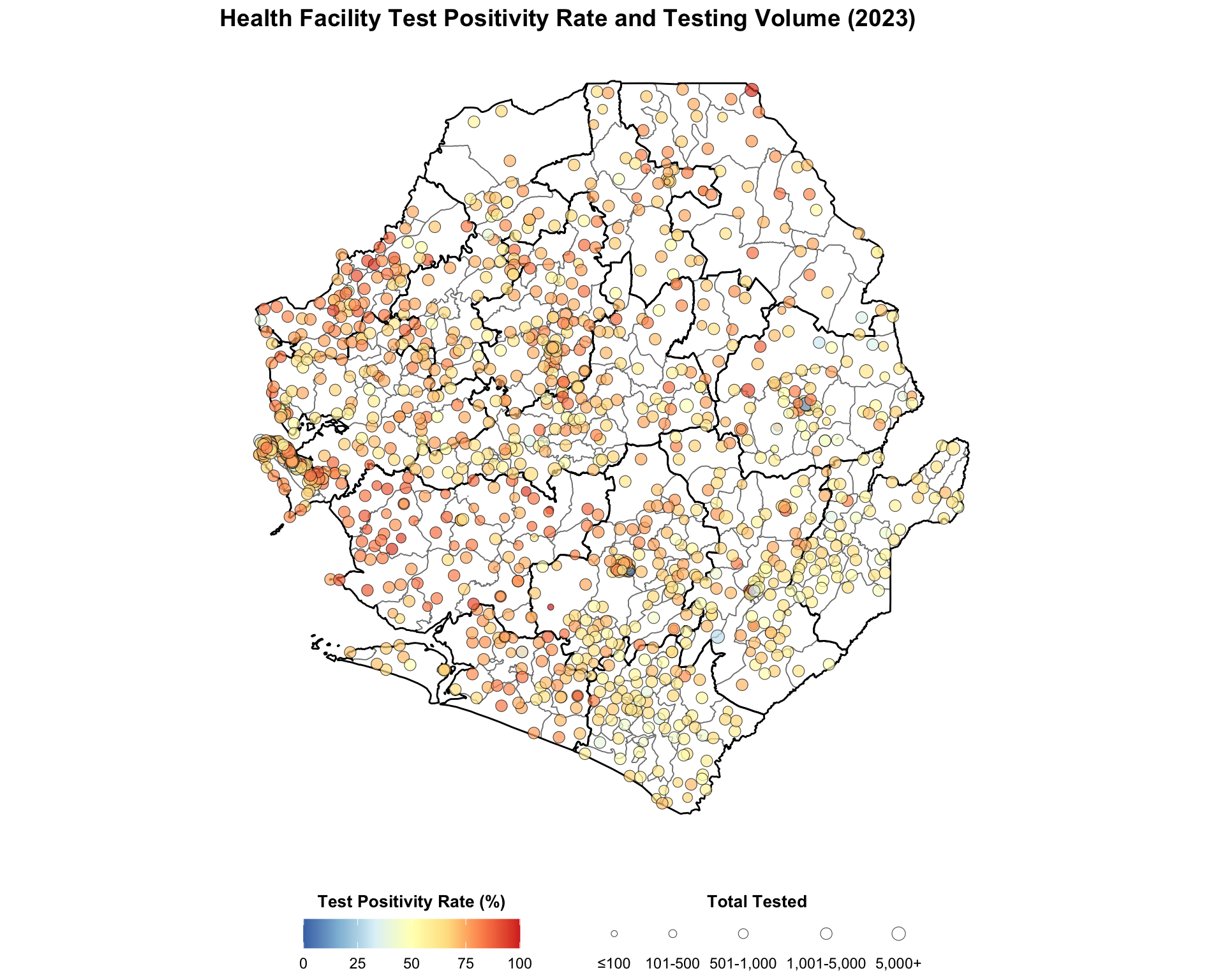
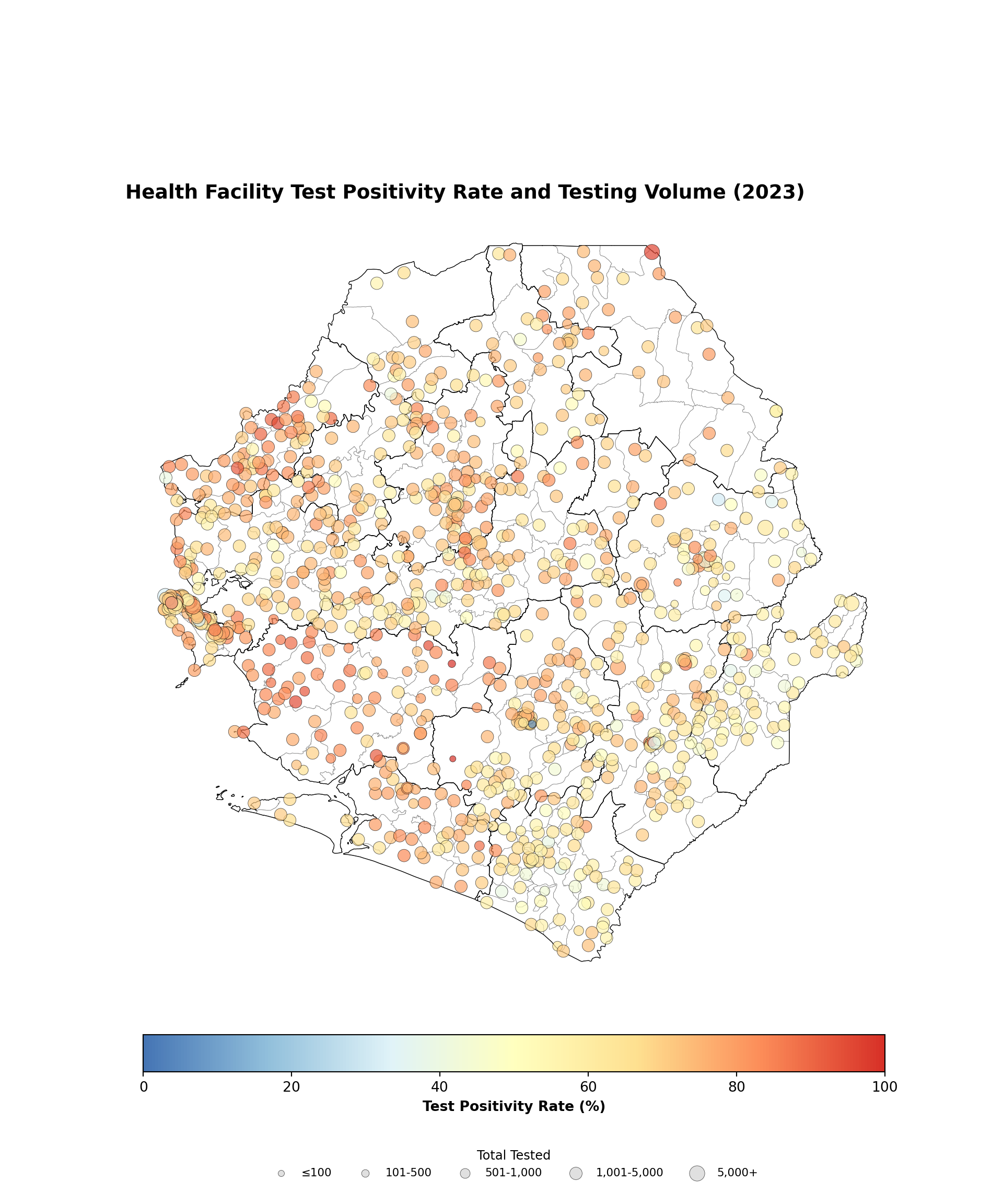
The previous example can be built upon by adding additional plot elements to represent other indicators. For example, the size of each health facilities point can be used to represent testing volume. The code below illustrates this example.

  • R
  • Python
map_tpr_test_2023 <- "health_facility_tpr_test_2023.png"

size_scale <- c("≤50" = 1.5, "51-200" = 2.0, "201-1,000" = 2.5, 
                "1,001-5,000" = 3.0, "5,000+" = 3.5)


combined_2023_categorical <- ggplot2::ggplot() +
  ggplot2::geom_sf(data = df1, fill = "white", 
                   color = "gray50", size = 0.3) +
  ggplot2::geom_sf(data = adm2_gdf, fill = NA,
                   color = "black",
                   size = 0.5) +
  ggplot2::geom_point(
    data = annual_summary_2023,
    ggplot2::aes(x = long, y = lat, 
                 fill = tpr,
                 size = size_category),
    shape = 21,
    stroke = 0.3,  # Thinner stroke
    alpha = 0.7
  ) +
  ggplot2::coord_sf() +
  ggplot2::scale_fill_gradientn(
    colors = rev(RColorBrewer::brewer.pal(7, "RdYlBu")),
    limits = c(0, 100),
    name = "Test Positivity Rate (%)",
    na.value = "grey50"
  ) +
  ggplot2::scale_size_manual(
    name = "Total Tested",
    values = size_scale,
    breaks = c("≤50", "51-200", "201-1,000", "1,001-5,000", "5,000+")
  ) +
  ggplot2::theme_void() +
  ggplot2::theme(
    legend.position = "right",
    legend.title = ggplot2::element_text(size = 10, face = "bold"),
    legend.text = ggplot2::element_text(size = 9),
    plot.title = ggplot2::element_text(hjust = 0.5, size = 12, face = "bold"),
    plot.margin = ggplot2::margin(5, 5, 5, 5),
    legend.key.size = grid::unit(0.8, "cm")
  ) +
  ggplot2::labs(title = "Health Facility Test Positivity Rate and Testing Volume (2023)")

# Print the categorical version
print(combined_2023_categorical)

ggplot2::ggsave(
  filename = file.path(output, map_tpr_test_2023),
  plot = combined_2023_categorical,
  width = 10,
  height = 7,
  bg = "white",
  dpi = 300
)

cat("2023 TPR categorical map saved as:", file.path(output, map_tpr_test_2023), "\n")
Output

2023 TPR categorical map saved as: english/outputs/health_facility_tpr_test_2023.png 

Summary

This streamlined workflow outlines steps to visualize health facility coordinates effectively:

  • Organized file management: Use consistent directory structure and clear variable naming for better code maintainability

  • Flexible coordinate handling: Support both combined and separate coordinate columns with automatic splitting when needed

  • Data quality assurance: Validate coordinate ranges and remove invalid entries before mapping

  • Efficient spatial conversion: Create spatial objects for advanced geographic operations and analysis

  • Advanced indicator visualization: Use points coordinate data to visualize multiple indicators effectively

Full code

The complete script for mapping health facility coordinates with administrative boundaries is below.

  • R
  • Python
Code
# =============================================================================
# Health facility coordinate mapping and visualization
# =============================================================================
# This script creates comprehensive health facility maps with administrative
# boundaries, showing facility locations and distributions.
# Optimized for SNT (Sub-National Tailoring) processes and health system planning.

# =============================================================================
# Step 1: Install and Load Packages
# =============================================================================

# Check if 'pacman' is installed; install it if missing
if (!requireNamespace("pacman", quietly = TRUE)) {
  install.packages("pacman")
}

# Load all required packages using pacman
pacman::p_load(
  sf,           # for reading and handling spatial data
  readxl,       # for reading Excel files
  readr,        # for reading CSVs
  dplyr,        # for data manipulation
  stringr,      # for string cleaning and formatting
  ggplot2,      # for creating plots
  RColorBrewer, # for color palettes
  scales,       # for formatting scales and labels
  here,         # for cross-platform file paths
  tidyr         # for data reshaping and coordinate splitting
)

# =============================================================================
# Step 2: Load and Prepare Input Data
# =============================================================================

# Define base directories and filenames
shp_dir <- "english/data_r/shapefiles"
hf_dir  <- "english/data_r/health_facility"

# Define filenames
shp_file <- "Chiefdom2021.shp"
hf_file  <- "mfl_hfs.xlsx"

# Compose full file paths for data loading
shp_path <- here::here(shp_dir, shp_file)
hf_path  <- here::here(hf_dir, hf_file)

# Load shapefile and transform CRS to WGS84
df1 <- sf::st_read(shp_path, quiet = TRUE) |>
  sf::st_transform(crs = sf::st_crs(4326))

# Load health facility Excel data
df2 <- readxl::read_excel(hf_path)

# =============================================================================
# Step 3: Split Coordinates Column into Latitude and Longitude (if needed)
# This step is only required if longitude and latitude are combined in a single column
# If columns are separate, skip this step
# =============================================================================

# Replace separators (; or space) with a comma
df2$coordinates <- gsub("[; ]+", ",", df2$coordinates)

# Split coordinates column by comma into two columns
df2 <- tidyr::separate(df2, col = "coordinates", 
                       into = c("w_lat", "w_long"), 
                       sep = ",", convert = TRUE)

df2$x <- df2$w_long
df2$y <- df2$w_lat


# Filter to remove missing or out-of-range coordinates
facilities_clean <- df2[
  !is.na(df2$x) & !is.na(df2$y) &
  df2$x >= -180 & df2$x <= 180 &
  df2$y >= -90 & df2$y <= 90,
]


# =============================================================================
# Step 4: Convert to spatial object
# =============================================================================


facilities_sf <- sf::st_as_sf(
  facilities_clean,
  coords = c("w_long", "w_lat"),
  crs = 4326
)

# =============================================================================
# Step 5: Save Cleaned and Spatial Data
# =============================================================================

# Create output directory
output <- "english/outputs"
dir.create(output, recursive = TRUE, showWarnings = FALSE)

# Define output filenames and paths
hf <- "facilities.csv"
sf <- "facilities_spatial.shp"

hf_path <- file.path(output, hf)
sf_path <- file.path(output, sf)

# Save cleaned data as CSV
write.csv(facilities_clean, hf_path, row.names = FALSE)

# Save spatial data as shapefile
sf::st_write(facilities_sf, sf_path, append = FALSE, quiet = TRUE)

# =============================================================================
# Step 6: Create and Save Health Facility Maps
# =============================================================================

# Define map title and output filename
title <- "Health facilities in Sierra Leone"
map   <- "health_facility_locations.png"

# Create the basic map
facilities_map <- ggplot2::ggplot() +
  ggplot2::geom_sf(data = df1, fill = "white",
                   color = "grey50",
                   size = 0.3) +
  ggplot2::geom_sf(data = adm2_gdf, fill = NA,
                   color = "black",
                   size = 0.5) +
  ggplot2::geom_point(
    data = facilities_clean,
    ggplot2::aes(x = x, y = y),
    color = "#47B5FF", size = 0.8, alpha = 0.7
  ) +
  ggplot2::coord_sf() +
  ggplot2::theme_void() +
  ggplot2::theme(
    plot.title = ggplot2::element_text(hjust = 0.5,
                                       size = 14,
                                       face = "bold"),
    plot.margin = ggplot2::margin(10, 10, 10, 10)
  ) +
  ggplot2::labs(title = title)

# Print and save the map
print(facilities_map)

ggplot2::ggsave(
  filename = file.path(output, map),
  plot = facilities_map,
  width = 10,
  height = 7,
  bg = "white",
  dpi = 300
)


# 6.2: Health facilities by type
# Define map title and output filename for facility type map
title_type <- "Health facility types in Sierra Leone"
map_type   <- "health_facility_by_type.png"

# Create health facility type map
facility_type_map <- ggplot2::ggplot() +
  ggplot2::geom_sf(data = df1, fill = "white", 
                   color = "gray50", size = 0.3) +
    ggplot2::geom_sf(data = adm2_gdf, fill = NA,
                   color = "black",
                   size = 0.5) +
  ggplot2::geom_point(
    data = facilities_clean,
    ggplot2::aes(x = x, y = y, color = type),
    size = 1, alpha = 0.8
  ) +
  ggplot2::coord_sf() +
  ggplot2::scale_color_brewer(palette = "Set1", name = "Facility Type") +
  ggplot2::theme_void() +
  ggplot2::theme(
    legend.position = "bottom",
    legend.title = ggplot2::element_text(size = 12, face = "bold"),
    legend.text = ggplot2::element_text(size = 10),
    plot.title = ggplot2::element_text(hjust = 0.5, size = 14, face = "bold"),
    plot.margin = ggplot2::margin(10, 10, 10, 10)
  ) +
  ggplot2::labs(title = title_type)

# Print and save the type map
print(facility_type_map)

ggplot2::ggsave(
  filename = file.path(output, map_type),
  plot = facility_type_map,
  width = 10,
  height = 7,
  bg = "white",
  dpi = 300
)

# 6.3: Specific health facility types 
# Define map title and output filename for faceted map
title_facet <- "Health facility distribution by type in Sierra Leone"
map_facet   <- "health_facility_faceted_by_type.png"

# Create faceted map by facility type
faceted_type_map <- ggplot2::ggplot() +
  ggplot2::geom_sf(data = df1, fill = "white", 
                   color = "gray50", size = 0.2) +
    ggplot2::geom_sf(data = adm2_gdf, fill = NA,
                   color = "black",
                   size = 0.5) +
  ggplot2::geom_point(
    data = facilities_clean,
    ggplot2::aes(x = x, y = y),
    color = "#47B5FF", size = 1, alpha = 0.7
  ) +
  ggplot2::facet_wrap(~ type) +
  ggplot2::coord_sf() +
  ggplot2::theme_void() +
  ggplot2::theme(
    plot.title = ggplot2::element_text(hjust = 0.5, size = 14, face = "bold"),
    strip.text = ggplot2::element_text(face = "bold", size = 10),
    plot.margin = ggplot2::margin(10, 10, 10, 10)
  ) +
  ggplot2::labs(title = title_facet)

# Print the faceted map
print(faceted_type_map)

# Save the faceted map
ggplot2::ggsave(
  filename = file.path(output, map_facet),
  plot = faceted_type_map,
  width = 12,
  height = 9,
  bg = "white",
  dpi = 300
)

# =============================================================================
# Step 7: Advanced plotting
# =============================================================================


final_dhis2_mfl_integrated <- readRDS(
  here::here(
  "english/data_r/health_facility/final_dhis2_mfl_integrated.rds"))

# Calculate annual summaries for each health facility
annual_summary <- final_dhis2_mfl_integrated |>
  dplyr::group_by(hf_uid, hf, year, lat, long) |>
  dplyr::summarise(
    # Sum tests across all age groups and settings
    total_tests = sum(test_u5 + test_5_14 + test_ov15,
                          na.rm = TRUE),
    # Sum positive tests across all age groups and settings
    positive_tests = sum(conf_u5 + conf_5_14 + conf_ov15,
                             na.rm = TRUE),
    .groups = 'drop') |>
  # Calculate Test Positivity Rate (TPR) as percentage
  dplyr::mutate(
    tpr = base::ifelse(total_tests > 0, 
                      (positive_tests / total_tests) * 100, 
                      NA_real_)) |>
  # Remove facilities with no tests
  dplyr::filter(total_tests > 0)

# Filter for 2023 only and remove NA/zero-testing facilities
annual_summary_2023 <- annual_summary |>
  dplyr::filter(year == 2023, !is.na(tpr), total_tests > 0, 
                !is.na(lat), !is.na(long)) |>
  dplyr::mutate(
    size_category = dplyr::case_when(
      total_tests <= 100 ~ "≤100",
      total_tests <= 500 ~ "101-500",
      total_tests <= 1000 ~ "501-1,000",
      total_tests <= 5000 ~ "1,001-5,000",
      TRUE ~ "5,000+"
    ),
    size_category = factor(size_category, 
                          levels = c("≤100", "101-500", "501-1,000", 
                                     "1,001-5,000", "5,000+"))
  )

map_tpr_2023 <- "health_facility_tpr_2023.png"

tpr_only_2023 <- ggplot2::ggplot() +
  ggplot2::geom_sf(data = df1, fill = "white", 
                   color = "gray50", size = 0.3) +
  ggplot2::geom_sf(data = adm2_gdf, fill = NA,
                   color = "black",
                   size = 0.5) +
  ggplot2::geom_point(
    data = annual_summary_2023,
    ggplot2::aes(x = long, y = lat, fill = tpr),
    shape = 21,
    size = 2,  
    stroke = 0.5,
    alpha = 0.8
  ) +
  ggplot2::coord_sf() +
  ggplot2::scale_fill_gradientn(
    colors = rev(RColorBrewer::brewer.pal(7, "RdYlBu")),
    limits = c(0, 100),
    name = "Test Positivity Rate (%)",
  ) +
  ggplot2::theme_void() +
  ggplot2::theme(
    legend.position = "right",
    legend.title = ggplot2::element_text(size = 11, face = "bold"),
    legend.text = ggplot2::element_text(size = 10),
    plot.title = ggplot2::element_text(hjust = 0.5, size = 14, face = "bold"),
    plot.margin = ggplot2::margin(10, 10, 10, 10),
    legend.key.size = grid::unit(1, "cm")
  ) +
  ggplot2::labs(title = "Health Facility Test Positivity Rate (2023)")

# Print and save map
print(tpr_only_2023)

ggplot2::ggsave(
  filename = file.path(output, map_tpr_2023),
  plot = tpr_only_2023,
  width = 10,
  height = 7,
  bg = "white",
  dpi = 300
)

cat("2023 TPR map saved as:", file.path(output, map_tpr_2023), "\n")

map_tpr_test_2023 <- "health_facility_tpr_test_2023.png"

size_scale <- c("≤50" = 1.5, "51-200" = 2.0, "201-1,000" = 2.5, 
                "1,001-5,000" = 3.0, "5,000+" = 3.5)


combined_2023_categorical <- ggplot2::ggplot() +
  ggplot2::geom_sf(data = df1, fill = "white", 
                   color = "gray50", size = 0.3) +
  ggplot2::geom_sf(data = adm2_gdf, fill = NA,
                   color = "black",
                   size = 0.5) +
  ggplot2::geom_point(
    data = annual_summary_2023,
    ggplot2::aes(x = long, y = lat, 
                 fill = tpr,
                 size = size_category),
    shape = 21,
    stroke = 0.3,  # Thinner stroke
    alpha = 0.7
  ) +
  ggplot2::coord_sf() +
  ggplot2::scale_fill_gradientn(
    colors = rev(RColorBrewer::brewer.pal(7, "RdYlBu")),
    limits = c(0, 100),
    name = "Test Positivity Rate (%)",
    na.value = "grey50"
  ) +
  ggplot2::scale_size_manual(
    name = "Total RDT Tests",
    values = size_scale,
    breaks = c("≤50", "51-200", "201-1,000", "1,001-5,000", "5,000+")
  ) +
  ggplot2::theme_void() +
  ggplot2::theme(
    legend.position = "right",
    legend.title = ggplot2::element_text(size = 10, face = "bold"),
    legend.text = ggplot2::element_text(size = 9),
    plot.title = ggplot2::element_text(hjust = 0.5, size = 12, face = "bold"),
    plot.margin = ggplot2::margin(5, 5, 5, 5),
    legend.key.size = grid::unit(0.8, "cm")
  ) +
  ggplot2::labs(title = "Health Facility Test Positivity Rate and Testing Volume (2023)")

# Print the categorical version
print(combined_2023_categorical)

ggplot2::ggsave(
  filename = file.path(output, map_tpr_test_2023),
  plot = combined_2023_categorical,
  width = 10,
  height = 7,
  bg = "white",
  dpi = 300
)

cat("2023 TPR categorical map saved as:", file.path(output, map_tpr_test_2023), "\n")
 

©2025 Applied Health Analytics for Delivery and Innovation. All rights reserved